
 ParkControlFree for Windows, by Bitsum
Tune core parking, frequency scaling and P/E-core scheduling for every power plan. No registry edits, no reboot.
A beta is available. Try the beta
 1
2
3
1
2
3
What it does
Windows parks cores aggressively, even in High Performance. Waking them adds latency every time a game, a DAW or a call bursts the CPU. ParkControl puts those settings in front of you.
Turn parking off for a responsive plan, keep the Windows default, or park aggressively to save power.
Minimum unparked cores, 0 to 100%
Set the lowest clock each plan may drop to, separately for plugged-in and battery power.
Minimum processor state, AC and DC
Decide whether short and long running threads go to P-cores, E-cores, or wherever Windows prefers.
Intel 12th gen and newer, Core Ultra
Switch to a fast plan while you work and a frugal one when the PC sits idle. Automatic.
Plus power plan change notifications
ParkControl Pro
Lifetime licenses are a one-time payment and include every future update. No subscription.
| Feature | Free | Pro |
|---|---|---|
| Core parking and frequency scaling | ✓ | ✓ |
| Hybrid thread scheduling | ✓ | ✓ |
| Live core map in the tray | ✓ | ✓ |
| Dynamic Boost | – | ✓ |
| Power plan change notifications | – | ✓ |
| Funds independent development | – | ✓ |
One PC. Pay once, keep every future update.
Up to 5 PCs in one home, non-commercial use.
30-day money-back guarantee on every plan.
Reference
Guide
CPU Parking is a low-power sleep state (C6) supported by most modern processors and operating systems. It dynamically disables CPU cores in an effort to conserve power when idle. Unfortunately, this power saving comes at a price: Latency when CPUs need to be unparked to execute code.
Initially, core parking was controlled entirely by the operating system. The aggressive core parking of Windows led to a great deal of inefficiency during bursting CPU loads. Intel moved core parking control onto the chip in the Skylake generation, and AMD followed, but still the parameters of the Windows power plans are set to aggressively park CPU cores. Even the default ‘High Performance’ power plan is not immune. The new ‘Ultra Performance’ power plan copies what Bitsum did with our own ‘Bitsum Highest Performance’ power plan and finally disables core parking entirely.
ParkControl (and Process Lasso) not only let one more easily configure CPU core parking and frequency scaling, but also allow for dynamic entrance into a higher performance power plan. For instance, with Process Lasso, you can automatically enter ‘Bitsum Highest Performance’ when you start a game, then go back to ‘Balanced’ when you exit.
ParkControl has Dynamic Boost to allow you to set active and idle power plans. Process Lasso has a similar feature with its IdleSaver.
Empirical evidence shows that disabling CPU core parking can make a tangible improvement in system performance. There are many factors that will determine precisely how effective it will be for a given situation. However, generally, Windows is too aggressive in its core parking, resulting in high latency during bursting CPU loads, stemming from the overhead of having to unpark CPU cores. Since bursting CPU loads are the most common type for many workloads, core parking can be a substantial drag on system performance and responsiveness.
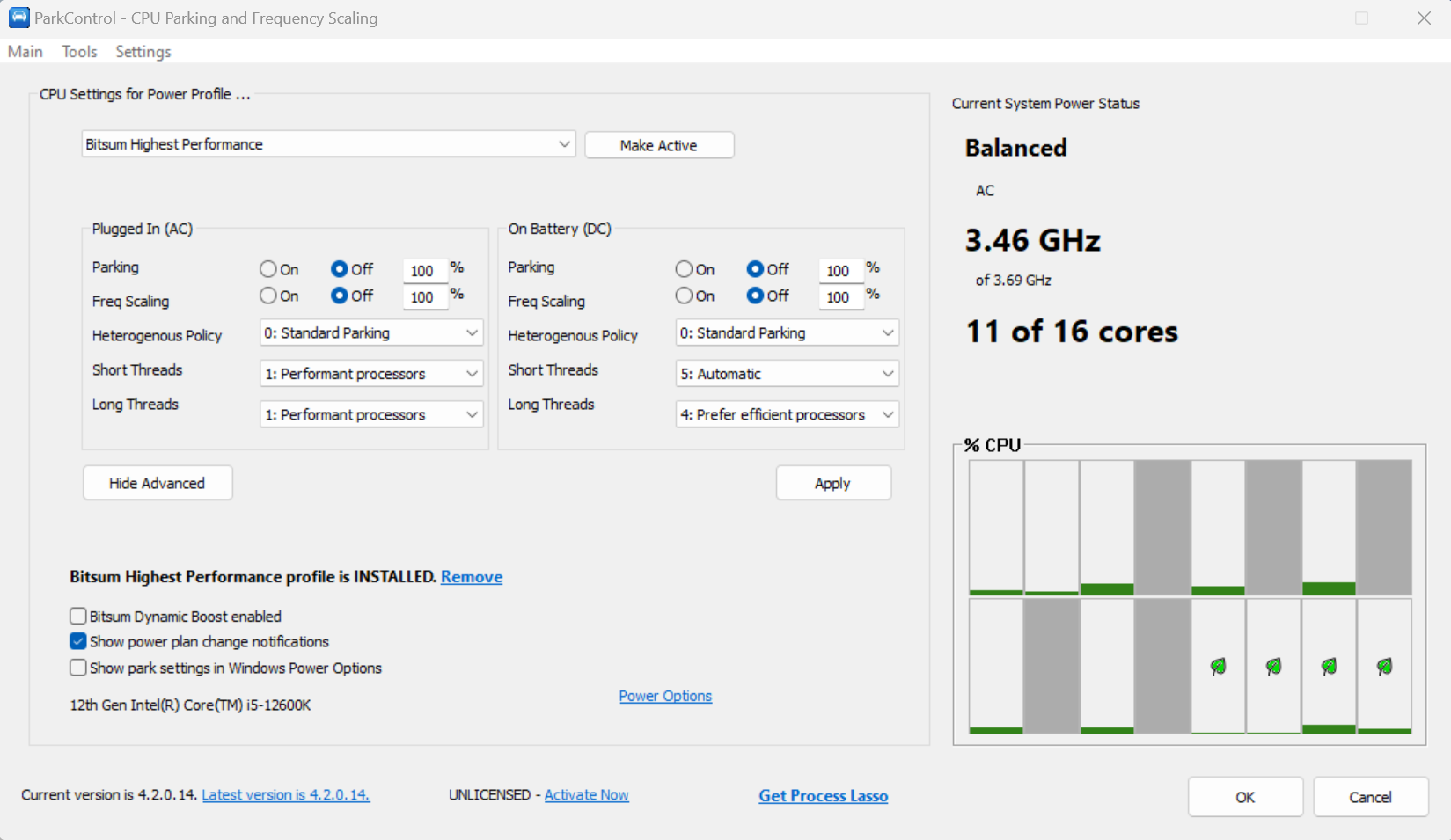
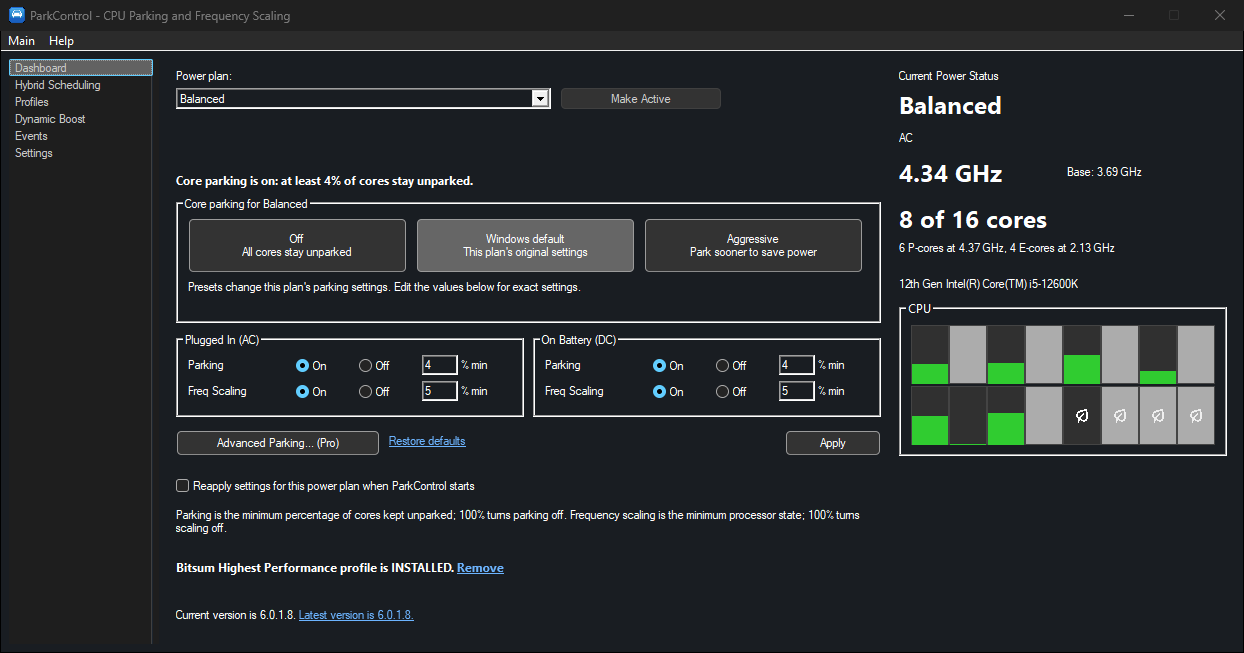
ParkControl lets you easily set CPU core parking and frequency scaling parameters for both AC (plugged-in) and DC (battery) power states of your device.
Both CPU core parking and frequency scaling are power saving features of modern CPUs. CPU core parking is when cores are put into a sleep-like state when demand is low. Similarly, CPU frequency scaling allows the CPU base frequency to be lowered, again to conserve energy.
Each power plan has its own settings, and can be selected via the power plan drop-down. When you select a power plan, the user interface will populate with that power plan’s settings. After making changes, click the ‘Apply’ button to save them. Use the ‘Make Active’ button to switch the PC to that power plan.
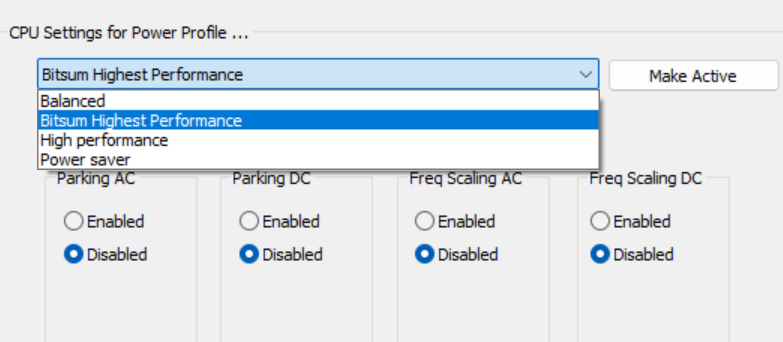
Every Windows power plan stores its own processor settings, with separate values for plugged in (AC) and on battery (DC). ParkControl reads and writes those settings in the plan itself, the same place Windows Power Options keeps them, so they stay in effect even when ParkControl isn’t running. Most of them are hidden in Power Options by default.
On CPUs with performance and efficiency cores, such as Intel 12th generation and later, Windows keeps a second copy of many processor settings for Processor Power Efficiency Class 1, which is the P-cores. The original setting then applies to class 0, the E-cores. On CPUs with only one kind of core, the class 0 setting covers every core. The powercfg name of each setting is shown under it, with a 1 on the end for the P-core copy.
These are the settings on ParkControl’s main window and Hybrid Scheduling page. Everything here is free.
| Minimum unparked cores Parking. CPMINCORES, CPMINCORES1 | The share of cores, from 0% to 100%, that Windows must always keep unparked. A parked core isn’t switched off: Windows simply stops scheduling new work on it so it can sit in a deep idle state and save power. When demand rises, Windows unparks cores again, which takes at least one performance check interval (see Advanced Settings). At 100%, nothing is ever parked, so every core is ready the instant work arrives; ParkControl shows this as Parking Off. Lower values let Windows park more cores at light load. That saves power, but sudden bursts of work can wait a moment for cores to wake. Windows rounds the percentage to whole cores. The core parking presets set this value: Off sets 100%, Windows default restores the plan’s original value, and Aggressive allows more parking. On hybrid CPUs, the P-cores and E-cores choice picks which copy you’re editing. |
| Minimum processor state Freq Scaling. PROCTHROTTLEMIN, PROCTHROTTLEMIN1 | The lowest performance level, from 0% to 100%, that the processor may drop to, as a percentage of its base performance. Windows and the CPU lower clocks and voltage at light load to save energy and heat. A higher minimum keeps the CPU from dropping as far, so it responds faster to short bursts but uses more power at idle. At 100%, the CPU stays at full base speed even when idle; ParkControl shows this as Freq Scaling Off. On recent CPUs that manage their own clocks (Intel Speed Shift and AMD CPPC), the minimum acts as a floor the hardware respects. It never limits turbo boost. |
| Maximum processor state PROCTHROTTLEMAX, PROCTHROTTLEMAX1 | The highest performance level the processor may reach, from 0% to 100%. Anything below 100% caps the clock speed, and on many PCs even 99% turns off turbo boost entirely. Some power plans and battery settings ship with a lower maximum. When you click Apply in ParkControl’s main window, it sets the maximum to 100% for the cores you edited, so a plan you tune for responsiveness isn’t left capped. |
| Heterogeneous policy in effect Hybrid Scheduling. HETEROPOLICY | On CPUs with two or more kinds of cores, chooses which of Windows’ built-in core parking policies is used. Windows numbers them 0 to 4. ParkControl names the two in common use: 4: Hetero Parking, the hybrid-aware policy, is more energy efficient, and 0: Standard Parking is more performant. Policies 1 to 3 are undocumented by Microsoft and shown as Unknown. |
| Thread scheduling policy Hybrid Scheduling, Long Threads. SCHEDPOLICY | On hybrid CPUs, where Windows should run long running threads, the ones that keep working for a while, like games, renders and compiles. The choices are: 0: All processors: No preference by core type. 1: Performant processors: P-cores only. 2: Prefer performant processors: P-cores first, and E-cores only when the P-cores are busy. 3: Efficient processors: E-cores only. 4: Prefer efficient processors: E-cores first, and P-cores only when the E-cores are busy. 5: Automatic: Windows decides, using hints from the CPU such as Intel Thread Director. Steering long threads to E-cores saves power but slows heavy work; steering them to P-cores does the opposite. |
| Short-thread scheduling policy Hybrid Scheduling, Short Threads. SHORTSCHEDPOLICY | The same choices, for short running threads: The brief bursts of work behind most user interface, input and background activity. Keeping short threads on P-cores helps the PC feel snappy; moving them to E-cores lets the P-cores stay parked more often. |
Click Advanced Parking in ParkControl to see and change every core parking and processor setting below, grouped as they are here. Settings your CPU or Windows version doesn’t support are left out (P-core settings appear only on hybrid CPUs), and settings that have no effect while parking is off are greyed out. Browsing is free; saving changes needs ParkControl Pro. Its presets set them all at once: Off keeps every core unparked, Aggressive lets Windows park cores sooner, and Windows default restores the plan’s original values.
| Performance check interval PERFCHECK | How often, in milliseconds (1 to 5,000), Windows re-evaluates processor performance states and which cores to park. Every setting measured in “check intervals” below is a multiple of this. A shorter interval reacts to load changes sooner at the cost of a little more overhead; a longer one reacts more slowly and smooths out brief spikes. |
| Unpark delay CPINCREASETIME | The minimum number of check intervals (1 to 100) that must pass before Windows may unpark more cores. Lower values wake cores sooner when load rises. |
| Park delay CPDECREASETIME | The minimum number of check intervals (1 to 100) that must pass before Windows may park more cores. Higher values keep cores awake longer after a burst, so the next burst finds them ready. |
| Cores to unpark at a time CPINCREASEPOL | How many cores Windows unparks when it needs more: Ideal number of cores (as many as its calculation calls for), Single core (one per check interval), All possible cores (every core it is allowed to), or One eighth cores (an eighth of the cores at a time). Unparking all at once gives the fastest response to sudden load. |
| Cores to park at a time CPDECREASEPOL | The same choices for parking when fewer cores are needed. Single core parks most gradually. |
| Min unparked cores CPMINCORES | The same setting as Parking on the main window: The share of cores that must always stay unparked. 100% turns core parking off, which makes the other parking settings in this group moot. |
| Max unparked cores CPMAXCORES | The largest share of cores Windows may unpark, from 0% to 100%. Below 100%, some cores stay parked even under full load. That limits multi-threaded performance in exchange for lower power and heat. Leave it at 100% unless you mean to cap the CPU. |
| Concurrency threshold CPCONCURRENCY | How busy a core must be, in percent, to count as active when Windows works out how many cores the current work needs (its concurrency). A lower threshold counts lightly loaded cores as busy, so Windows keeps more cores unparked. |
| Concurrency headroom threshold CPHEADROOM | When every core in the set Windows is using is busier than this percentage, it unparks one extra core as headroom. Lower values add that spare core sooner. |
| Distribution threshold CPDISTRIBUTION | The utilization, in percent, Windows uses to work out how many cores the load would need if it were spread evenly (the distribution concurrency). Lower values result in more cores being kept unparked. |
| Utility distribution DISTRIBUTEUTIL | Whether the parking engine spreads utility (load) across processors when it decides how many cores are needed: Enabled or Disabled. |
| Overutilization threshold CPOVERUTIL | Parking steers new work away from a core, but threads can still run on it. When a parked core gets busier than this percentage (5% to 100%), Windows treats it as overutilized and unparks it. Lower values unpark such cores sooner. |
| Parked perf state CPPERF | The performance state a core goes to while parked: No preference, Deepest performance state (lowest clocks, most savings), or Lightest performance state (higher clocks, quicker to resume work). |
Only on hybrid CPUs. Windows decides separately how many P-cores to keep awake, based on how much work the E-cores can’t handle.
| P-core park delay HETERODECREASETIME | The minimum number of check intervals (1 to 100) before Windows may reduce the number of P-cores in use. Higher values keep P-cores available longer after demand drops. (Windows’ own description of this setting mistakenly repeats the text of a different setting.) |
| P-core unpark delay HETEROINCREASETIME | The minimum number of check intervals (1 to 100) before Windows may bring more P-cores into use. Lower values wake P-cores sooner when demand rises. (Windows’ description has the same mistake.) |
| P-core park thresholds HETERODECREASETHRESHOLD | When demand falls below these levels, Windows parks P-cores. The levels are measured in units of E-core performance and set separately for the 1st, 2nd, 3rd, and 4th and later P-cores, so each additional P-core can have its own threshold. ParkControl offers the combinations Windows accepts. |
| P-core unpark thresholds HETEROINCREASETHRESHOLD | The matching levels for bringing P-cores into use. Lower thresholds wake P-cores at lighter loads, which favors responsiveness over battery life. |
| P-core initial perf when unparked HETEROCLASS1INITIALPERF | The performance level, in percent, a P-core starts at when it wakes from parking. Higher values let it take on work at full pace straight away. |
| E-core perf floor while P-cores unparked HETEROCLASS0FLOORPERF | The minimum performance level, in percent, the E-cores are held at while any P-core is awake. |
| Min unparked P-cores CPMINCORES1 | The P-core copy of Min unparked cores: The share of P-cores that must always stay unparked. 100% keeps every P-core ready. |
| Max unparked P-cores CPMAXCORES1 | The largest share of P-cores Windows may unpark. Below 100% caps how many P-cores can work at once. |
| Parked perf state, P-core CPPERF1 | The performance state a P-core goes to while parked: No preference, Deepest performance state or Lightest performance state. |
Heterogeneous policy in effect, Thread scheduling policy and Short-thread scheduling policy, the same settings as on the Hybrid Scheduling page (see Primary Settings above).
Windows raises a short latency sensitivity hint when responsiveness matters most, such as while an app is launching. While the hint is active, these values override the normal ones.
| Min unparked cores on latency hint LATENCYHINTUNPARK, LATENCYHINTUNPARK1 | The share of cores (and, separately, P-cores) that must be unparked while the hint is active. Higher values make sure enough cores are awake for the burst of work that follows a click or launch. |
| Perf under latency hint LATENCYHINTPERF, LATENCYHINTPERF1 | The performance level, in percent, cores (and, separately, P-cores) are raised to while the hint is active. Higher values make apps open and respond faster, at a small cost in power. |
These control how quickly P-cores lower their clock speed. Most modern CPUs run in autonomous mode (Intel Speed Shift, AMD CPPC), where the processor picks its own clocks. Then the first three settings are only advisory, and the energy/performance preference is the one that counts. ParkControl shows a notice when autonomous mode is on.
| P-core perf decrease policy PERFDECPOL1 | How Windows picks a lower performance state when load drops: Ideal (straight to the level it calculates), Single (one step at a time, the gentlest) or Rocket (straight to the lowest). |
| P-core perf decrease threshold PERFDECTHRESHOLD1 | How idle a P-core must be, as a busy percentage, before its performance state is lowered. A lower threshold keeps clocks up through moderate load. |
| P-core perf decrease time PERFDECTIME1 | The minimum number of check intervals (1 to 100) since the last change before a P-core’s performance state may be lowered. Higher values hold clocks up longer after a burst. |
| P-core energy/perf preference PERFEPP1 | In autonomous mode, how strongly P-cores favor saving energy over performance, from 0% (maximum performance) to 100% (maximum energy savings). This is the setting the CPU itself acts on, so it has the most direct effect on how fast P-cores ramp up and how long they stay there. |
Any changes you make with ParkControl are easily reverted. To restore defaults of a power plan, simply click the ‘Restore defaults’ link shown on the user interface. You can select each stock power plan (or overlay) to restore the defaults of it.
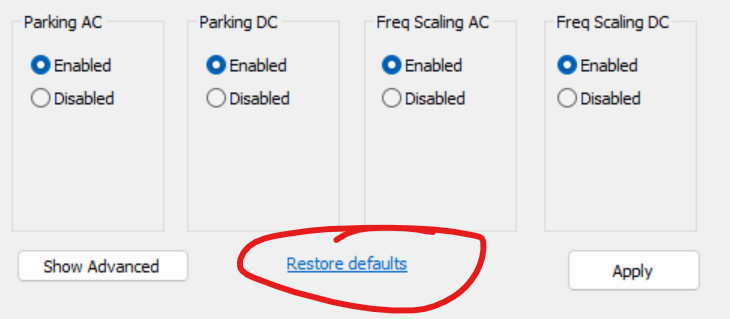
Non-stock power plans such as Bitsum Highest Performance can be restored to default by deleting and recreating them.
Instead of using ParkControl, you can change power settings from the Windows command line interface via Powercfg.exe. You must run this utility with elevated rights, so be sure to open an elevated console window by right-clicking ‘cmd.exe’ and selecting ‘Run as Administrator’.
Note that these commands adjust the currently active power plan, as indicated by SCHEME_CURRENT.
First, backup ALL your Power Settings by creating a dump of everything to a TXT file. It is unlikely you will ever need this, but…
powercfg /qh > powerconfig.txt
We’ll be reconfiguring the power plan attribute CPMINCORES (0cc5b647-c1df-4637-891a-dec35c318583).
To mandate 50% of available cores always remain unparked, run:
powercfg /setacvalueindex SCHEME_CURRENT SUB_PROCESSOR CPMINCORES 50
To adjust it so that only 25% of available cores remain active at all times, allowing 75% of available cores to be parked, you’d run:
powercfg /setacvalueindex SCHEME_CURRENT SUB_PROCESSOR CPMINCORES 25
‘0’ <zero> indicates to park as many CPU cores as possible.
To enable maximum use of CPU Parking for the power profile you are currently using:
powercfg /setacvalueindex SCHEME_CURRENT SUB_PROCESSOR CPMINCORES 0
To disable CPU Parking completely for the power profile you are currently using, you’d want to run:
powercfg /setacvalueindex SCHEME_CURRENT SUB_PROCESSOR CPMINCORES 100
All the above configure core parking while the system is plugged into AC power. For DC (battery) power, core parking is usually forced, but to configure it you would instead use ‘-setdcvalueindex’.
After changing the power scheme settings for CPU Parking as desired, you then want to make the changes active by running the command:
powercfg /setactive SCHEME_CURRENT
With ParkControl, a reboot is NOT required for these changes to take effect – in contrast to direct registry edits or other core parking software.
After applying tweaks, check the Windows Resource Monitor (resmon.exe) and verify that CPU Parking is indeed as you intend.
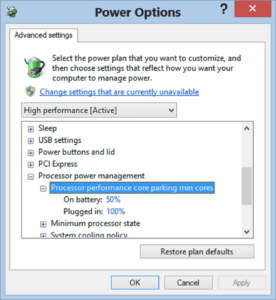
To show the core parking settings in the Windows Power Options, you can simply use the checkbox ‘Show park settings in Windows Power Options’ on the ParkControl window. However, if you want to do it yourself, use these commands.
Show Core Parking Settings:
powercfg /attributes SUB_PROCESSOR CPMINCORES -ATTRIB_HIDE
Hide Core Parking Settings:
powercfg /attributes SUB_PROCESSOR CPMINCORES +ATTRIB_HIDE
FAQ
Yes, they run together fine, and they do different jobs. Process Lasso tunes how individual apps run: ProBalance, priorities, CPU affinities and rules. ParkControl tunes the power plans themselves: Core parking, frequency scaling, hybrid thread scheduling and every advanced processor setting, plus a live core map in the notification area.
The one overlap is idle switching: Process Lasso’s IdleSaver and ParkControl’s Dynamic Boost both switch to a power saving plan when the PC is idle, so use one or the other (see below).
Core parking, frequency scaling, hybrid thread scheduling and the live core map are free to use indefinitely, and you can browse every setting in Advanced Core Parking. ParkControl Pro adds Dynamic Boost, power plan change notifications, and saving your changes in Advanced Core Parking. Pro is a one-time purchase with all future updates included.
Windows 10 and Windows 11 PCs with Intel or AMD processors, including CPUs with performance and efficiency cores, and Windows on ARM devices with a native ARM64 build. Which settings are available depends on the CPU and Windows version, and ParkControl shows only the ones your PC supports.
Parking happens only when Parking is on, with a minimum below 100%, and only at light load, since Windows unparks cores as soon as there is work for them. Some PCs and CPUs don’t park cores at all. If you saw cores park before, confirm in Resource Monitor (resmon.exe): Its CPU tab marks parked cores. Task Manager doesn’t show parking.
It will save some energy, but aggressive parking can make some CPUs feel sluggish. ParkControl is usually used the other way, to turn parking off for responsiveness. If you want the savings, enable parking only in a power saving plan, such as Power Saver or your Dynamic Boost idle plan, and keep it off in the plan you use day to day.
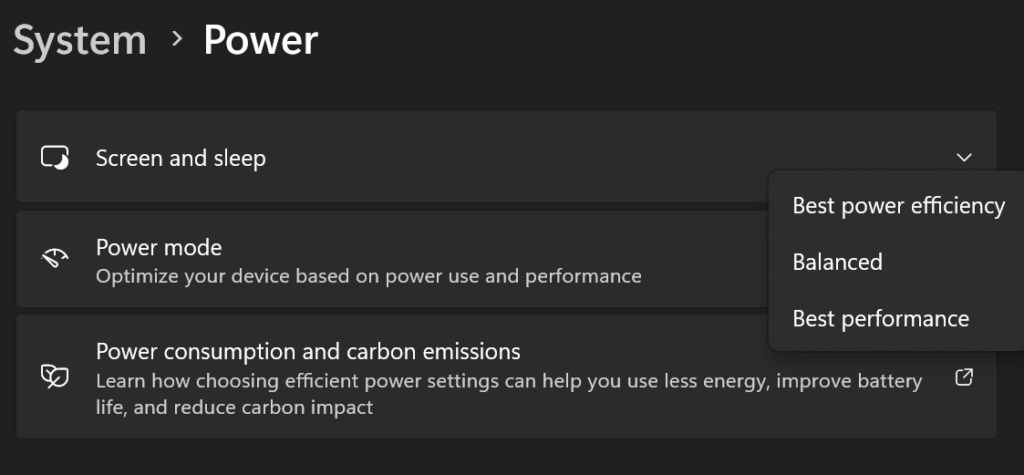
Many newer PCs use Power Modes instead of separate power plans: Windows keeps only the Balanced plan, and the power mode you pick (such as Best performance) is an overlay that changes some of its settings. ParkControl lists each mode as an overlay you can edit.
With Power Modes, you don’t need Bitsum Highest Performance: Choose the Best performance mode and tune it in ParkControl. To use Power Modes, make Balanced the active plan, then pick a mode in Windows Settings > System > Power (or from the battery icon), and restart ParkControl so the overlays show up.
When the PC is idle, Dynamic Boost switches to the plan chosen under When the PC is idle, switch to, and Windows then uses that plan’s sleep and display settings. Either change the sleep settings of that plan in Windows Power Options (Change plan settings), or pick a different idle plan on the Dynamic Boost page. On battery, check the idle plan used on battery too.
No. Both switch to a power saving plan when the PC is idle, so they would fight. ParkControl won’t turn on Dynamic Boost while IdleSaver is enabled in Process Lasso. Use one or the other.
Your changes are saved in the Windows power plans, so they stay in effect after a restart, when ParkControl isn’t running, and even after you uninstall it. ParkControl only needs to run for Dynamic Boost, notifications, the live core map, and restoring settings another program changes.
To undo them, use Restore defaults in ParkControl, which resets only the processor settings it manages. ParkControl also backs up all your power plans when it is installed, and the uninstaller asks whether to delete those backups.
No. Windows stores power plans in the registry, but editing them there bypasses Windows’ own checks and can leave a plan in a bad state. ParkControl uses Windows’ power plan interface, the same way Power Options does. If you prefer the command line, use powercfg.
From version 6.0, ParkControl shows the same effective speed as Task Manager’s Speed. It is read from Windows performance counters once a second, so turbo boost and throttling show up. Busy cores count more than idle ones, so idle cores don’t drag the number down. The smaller line underneath is the CPU’s base speed, and on hybrid CPUs the P-cores and E-cores get their own speeds. If it still reads lower than you expect:
Version 5.x and earlier showed the average base (non-boosted) clock, so turbo speeds did not appear.
No. On AMD processors that have it, the whole-CCD “parking” found in Ryzen Master is a separate mechanism from individual core parking. Turning off core parking in a power plan or mode doesn’t affect it, or Windows’ preference for one CCD over another, and ParkControl can’t control it. To keep apps and games on specific CCDs, use Process Lasso.
AC means plugged in, and DC means running on battery. Every power plan setting has a separate value for each.
First, make sure you’re entering the activation code, not the purchase key from your invoice; they look alike. You can use any name.
Otherwise, the cause is usually a temporary network problem, or an earlier pirated copy of our software that changed the Windows HOSTS file so our servers can’t be reached. Installing Process Lasso checks for this and warns you if the HOSTS file was changed; you can uninstall it afterwards. There is more help on the activation help page. If activation still fails, contact us and we’ll refund your purchase.
The ParkControl EULA is on the terms of use page.
NOTE: To reduce update notifications, minor updates may not be pushed to all existing installations. You can always initiate an update check manually to override this.
… older history clipped.
Need more control?
ProBalance keeps background processes in check, plus persistent priorities and CPU affinities, and power plans that switch per app.
Bitsum Technologies
Independent Windows software since 2002. We build novel solutions to software performance and automation challenges.